Screenshot Organizer for Windows: 7 Tools Compared, Plus the Habit That Makes Any of Them Work
A screenshot organizer has to do three things the Screenshots folder cannot: put every capture in one searchable place, read the text inside the images so you can find them later, and let you mark up or blur before sharing. On Windows the choice comes down to how much you want. Snipping Tool if you only need capture and one-off OCR. ShareX or Greenshot if you want a free capture tool with an editor. Snagit if you will pay $39 a year for capture plus a library. Refchi (free) or Eagle ($29.95) if you want screenshots to live in a real library with tags and content search. The tool matters less than the habit at the end of this article.
Every Windows machine I have used has the same folder. Pictures\Screenshots, somewhere between 800 and 6,000 files, every one of them named Screenshot 2026-03-11 142211.png. The screenshot of the error message from last spring is in there. So is the pricing table from a competitor's site, the client's Slack message with the approval, and the reference you grabbed from a film at 1 a.m. None of them can be found by anything but scrolling.
I make Refchi, which is one of the tools below, so read the Refchi section knowing that. The rest is what I would tell a friend who asked which screenshot organizer to use, and for at least two kinds of people the honest answer is a free tool that is not mine.
Why the Screenshots folder stops working
Three reasons, and they compound.
- The names carry no information. A timestamp tells you when, never what. After about 300 files, scrolling stops being a search strategy.
- Windows Search does not read images. File Explorer can find words inside a Word file or a PDF, but the text in a PNG is just pixels to it. The one screenshot you need, the one with "payment declined" in it, is invisible to the search box.
- Everything is one kind of file. Error messages, UI references, receipts, memes, and design inspiration all look the same in a grid of 16:9 thumbnails. A folder cannot tell them apart, and you will not sort them by hand.
The fix is not a better folder structure. It is a tool that captures into one place, reads the text for you, and gives you a fast way to find things by what they show. That is what "screenshot organizer" should mean, and most tools sold under that name only do the first third.
What a screenshot organizer actually needs to do
- Capture with a hotkey and land in one place. If saving takes more than one keystroke, half your screenshots stay in the clipboard and die there.
- Read the text. OCR (optical character recognition) turns "payment declined" from pixels into something you can type into a search box. Any tool without it is a capture tool, not an organizer.
- Tag or group without effort. Automatic tags by content ("chart", "code", "person") do more than a tag system you have to feed by hand. If you must tag manually, a small fixed set is the only kind that survives; I wrote about that in how to organize design references.
- Mark up and blur before sharing. Arrows, boxes, and a blur brush for the account number. This is where most people actually spend their time.
- Copy to the clipboard automatically. Most screenshots are taken to be pasted somewhere thirty seconds later. The organizer should not get in the way of that.
- Stay on your machine. Screenshots are the most sensitive files most people own: chats, bank pages, unreleased work. Uploading them by default is a bad trade for convenience.
Seven Windows screenshot tools at a glance
| Tool | Price | Capture | Reads text (OCR) | Library with tags | Annotate and blur |
|---|---|---|---|---|---|
| Snipping Tool (built in) | Free | Yes, Win+Shift+S | One image at a time (Text Actions); no search across captures | No, saves to a folder | Pen, highlighter, redact via Text Actions |
| ShareX | Free, open source | Yes, very configurable | OCR as an after-capture step; history searchable by name | History window, no tags | Full editor |
| Greenshot | Free, open source | Yes | No | No | Editor with shapes and obfuscation |
| Snagit | $39 per year | Yes, plus scrolling capture and video | Grab Text on a capture; Library search by tag, app, and date | Yes, Library with tags | Full editor, the best of the group |
| Eagle | $29.95 once | Yes, from the app and the browser extension | No | Yes, full design library | No editor |
| Refchi | Free | Yes, region capture from the app | On every capture, on-device, searchable with everything else | Yes, full library, auto-tagged | Draw, arrow, box, text, blur |
| Windows Recall | Included on Copilot+ PCs only | Automatic snapshots, opt in | Yes, of everything on screen | Timeline, not a library | No |
Snipping Tool: enough for many people, and already installed
Windows 11's Snipping Tool is better than its reputation. Win+Shift+S captures a region, window, or screen. Every capture can save automatically to Pictures\Screenshots (the setting is on by default and easy to miss). Text Actions runs OCR on the current image locally, so you can copy the text out of any screenshot, and Quick Redact blacks out phone numbers and email addresses it finds before you share. It reads QR codes too.
What it does not do is remember. There is no library, no search across captures, and the text it extracts is gone once you close the window. If you take five screenshots a week and mostly paste them into chats, this is all you need. If you take fifty and want the one from March, read on.
ShareX and Greenshot: free capture tools with editors
ShareX is the free, open-source power tool. It captures regions, windows, scrolling pages, and video, then runs a chain of after-capture tasks you configure: copy to the clipboard, save with a naming pattern, open the editor, run OCR, upload somewhere. Its image history window lists everything you have captured and can be searched by name. The learning curve is real and the settings screens are enormous, and once it is set up it is the fastest capture tool on Windows. Nothing leaves your machine unless you add an upload destination.
Greenshot is the simpler cousin: capture, a good editor with shapes and an obfuscate tool, export to the clipboard, a file, a printer, or an Office app. Version 1.3 shipped as a final release in July 2025 after years in preview, with maintenance updates since (1.3.315 in March 2026 fixed a security issue, so update if you have an old build). It has no library and no OCR. It is a capture-and-annotate tool, and a good one.
Both leave the organizing to you. Pair either with a fixed save folder and a real search tool and they hold up surprisingly well.
Snagit: capture and library in one, for $39 a year
Snagit is the professional option: region, window, scrolling, and panoramic capture, video recording, a strong editor with callouts, step numbers, and templates, Grab Text to pull text out of a capture, and a Library that keeps everything you have captured with tags, dates, and the application it came from. TechSmith moved Snagit to an annual subscription in 2025: $39 per year for personal use, $48 for business, with no monthly option. If you make documentation for a living, that is easy money. If you are a designer who mostly wants to find old references, it is a lot of tool for the job, and you may find you use the editor far more than the library.
Eagle: a real library, no OCR
Eagle ($29.95 once) is a design asset library first and a screenshot tool second. Its browser extension captures an area, an element, or a full page straight into the library with the source URL attached, and the desktop app can grab the visible screen. Once inside, screenshots get folders, tags, colors, and smart folders like everything else. What it lacks is any reading of the image: no OCR and no content tags, so the screenshot with "payment declined" is only findable if you named or tagged it. I compared Eagle with the alternatives in a separate piece.
Refchi: free, and it reads every screenshot
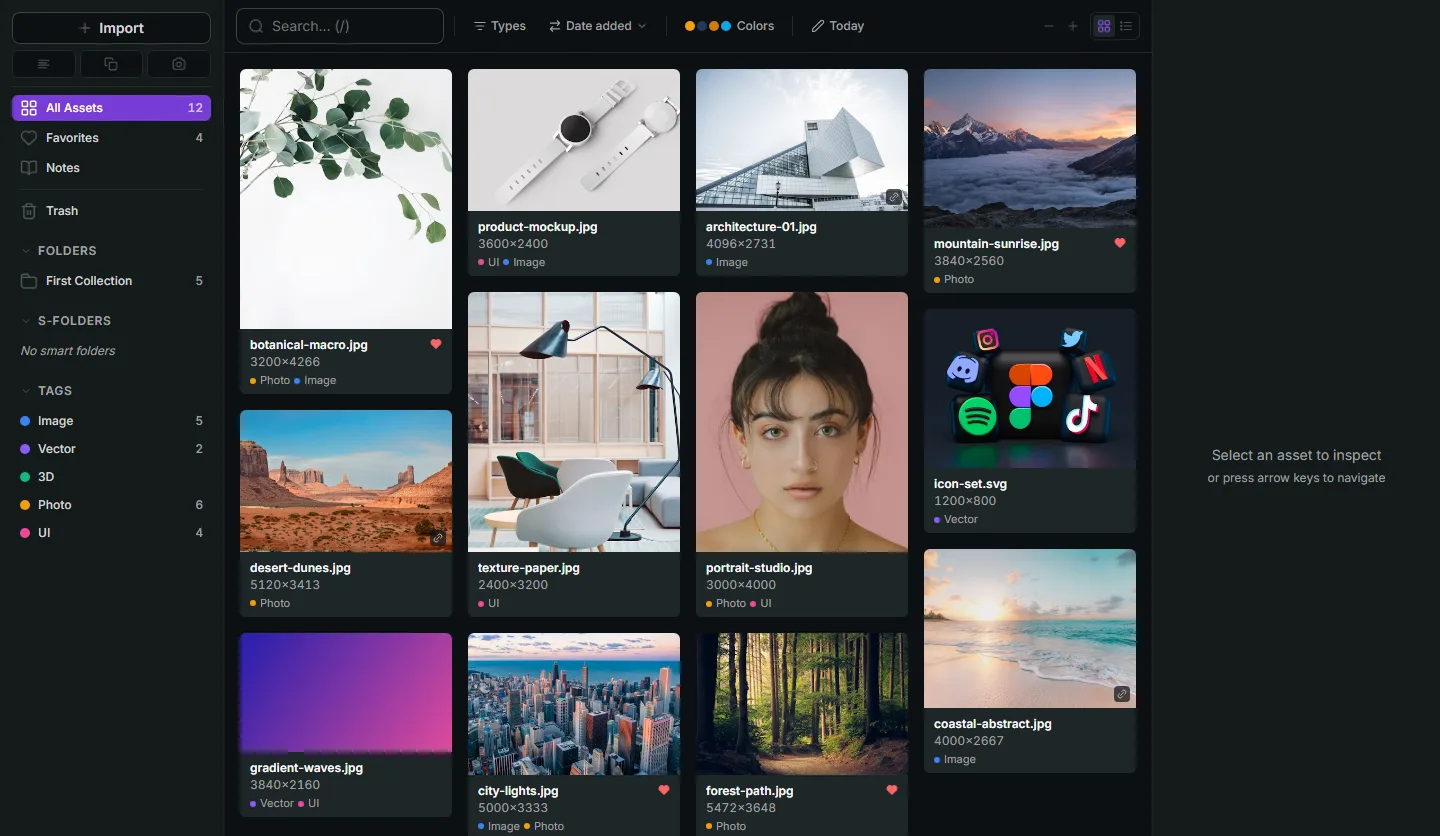
Refchi is a free local library for Windows. Its capture button lets you drag a region on screen; the capture lands in the library with a Screenshots tag, goes to the clipboard immediately so you can paste it, and opens an annotation view with draw, arrow, box, text, and a blur brush for the parts you do not want to share. After that the on-device models go to work: OCR extracts the text, a vision model adds content tags, colors are pulled, and the whole thing becomes searchable by meaning. "Declined payment error" finds the screenshot even if the words on it were "transaction could not be completed".
The library side is the same one used for everything else in Refchi: folders, tags, smart collections, full-screen preview, and no account or cloud. What it does not have: scrolling capture, video recording, a browser extension, or a Mac version. If you live in documentation tools, Snagit is still the better editor. If you want the screenshot you took in March to be findable in September without having done anything at the time, this is the one. Download and full feature list.
A note on Windows Recall
Windows Recall takes periodic snapshots of your screen on Copilot+ PCs, stores them locally, encrypted behind Windows Hello, and lets you search everything you have seen. It is off unless you turn it on, it needs a Copilot+ machine, and it is not a screenshot organizer: you cannot annotate, tag, or share a snapshot the way you would a file. It is closer to a searchable history than a library. If your machine supports it and you are comfortable with what it stores, it solves the "I saw this somewhere" problem. It does not solve the "where did I save that" problem.
The habit that makes any of these work
Whatever you pick, the workflow that holds up is the same one that works for design references: one place, capture everything, delete freely, tag almost nothing.
- Set one save location and never change it. If the tool has a library, that is the location.
- Capture with a hotkey, not through a menu. The extra second is the difference between a screenshot that exists and one that does not.
- Let the software read the text. If your tool cannot, at least keep a consistent folder so a desktop search tool with OCR can index it later.
- Once a week, delete. Screenshots decay fast; a third of them are dead within a month. A small library of things you might reuse beats a complete archive of everything you ever paused on.
- Blur before you share, not after. Account numbers, names, and unreleased work travel further than you expect.
Which screenshot organizer to use
- Few screenshots, mostly pasted into chat: Snipping Tool. It is already there.
- Many screenshots, want a fast free capture tool, happy to organize the files yourself: ShareX (power user) or Greenshot (simple).
- Documentation, tutorials, and video, with the budget for it: Snagit.
- Screenshots as design references inside a paid library, no text search needed: Eagle.
- Screenshots as design references, free, with the text and content searchable without tagging: Refchi.
Frequently asked questions
- What is the best free screenshot organizer for Windows?
- For capture and one-off OCR, the built-in Snipping Tool. For a free library that keeps every screenshot, reads its text on-device, and tags content automatically, Refchi. ShareX is the best free capture tool if you are happy to organize the files yourself.
- Can I search the text inside my screenshots on Windows?
- Not with File Explorer; Windows Search does not read text inside images. Snipping Tool's Text Actions can copy text from one image at a time. For search across all your screenshots you need a tool that runs OCR on every capture and indexes it, such as Refchi (free, on-device) or a photo manager with OCR.
- Does Windows 11 automatically save screenshots?
- Win+PrtScn saves a full-screen capture to Pictures\Screenshots. Snipping Tool (Win+Shift+S) also saves every capture there when its automatic-save setting is on, which it is by default. Neither adds tags or makes the contents searchable.
- Is Snagit still a one-time purchase?
- No. TechSmith moved Snagit to an annual subscription in 2025. Personal use is $39 per year and business use $48 per year, with no monthly plan.
- Is Windows Recall a screenshot organizer?
- Not really. Recall runs only on Copilot+ PCs, is off until you opt in, and stores periodic snapshots of your screen in a searchable, locally encrypted timeline. It cannot annotate, tag, or export those snapshots as files the way a screenshot tool can.
Keep reading
- How to Organize Design References: A System That Still Works at 10,000 FilesFolders fail around file 2,000. Tags fail when you stop tagging. Here is a system for design references built on capture habits, a small set of rules, and search that does the remembering for you.
- Eagle App Alternatives: Free and Paid Options for Designers, Compared by Someone Who Built OneEagle is $29.95 once and very good. The reasons to look elsewhere are specific: you want free, you want search that reads your images, or you want a floating board. Here is what fits each.
- Image Tagging Software: 8 Tools Compared by Where the Tags Live and Who Does the TaggingManual keywords written into the file, AI tags on your own machine, or a self-hosted server. Eight image tagging tools compared, with prices and what each one cannot do.